Getting Started
Requirements
- First off you need the following files:
- Mohradiant
- Mbuilder
Install mohradiant and direct it to the correct directories.
If it asks do you want to create a project file, just type in a name like "moh" and click OK.
You will then get the following screen:
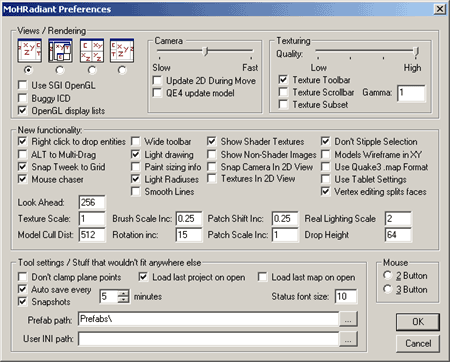 These are all your options, one important one is the "views/rendering"
you need to choose a style of window setup. Each window is a different
view. I myself use the 3rd screen along type. I suggest either leaving
in on the default window setup if you havent mapped before or choose
one you feel happy with. (If you choose the same as me, then you
will get a pop up on starting the editor, just press t or n twice
to turn it off) Also tick the "textures scrollbar" box
so you can look through textures if your using a pop up window etc.
These are all your options, one important one is the "views/rendering"
you need to choose a style of window setup. Each window is a different
view. I myself use the 3rd screen along type. I suggest either leaving
in on the default window setup if you havent mapped before or choose
one you feel happy with. (If you choose the same as me, then you
will get a pop up on starting the editor, just press t or n twice
to turn it off) Also tick the "textures scrollbar" box
so you can look through textures if your using a pop up window etc.
There are many other options in here, but you dont need to worry about them as yet. You might want to note the "Auto save every" box, which autosaves obviously, but if you have not saved your map ever, it will give a cannot save error. So watch out for that.
Click Ok and the editor will then start up.
Once your in the editor you may want to resize the windows, Lets have a run down of the main features:
Window views
 |
 |
 |
 |
| fig
1.0 |
fig 1.1 | fig 1.2 | fig 1.3 |
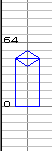
Fig 1.0 - As you would see the map from if you were looking at it from the front
Fig 1.1 - Same as above only the map from the side
Fig 1.2 - This is looking down upon your map, the most used window
Fig 1.3 - In certain views you will see this window, its the height window, which works the similar to the front or side views. You can just use this window to use height and not use front and side views, but you may want to have a side view later on for clipping and manipulation.
Grids
The grid can be resized using the number keys 1 through 9, Working on a larger grid will mean its easier to align brushes, if your working on a small grid you will find it harder and you will need to zoom in a lot. When you first start the editor you are on a small grid, so enlarge it, a good size is grid size 16. To use that you press the "5" key, you can also go to "grid" in the toolbar and select the size from there, it also tells you in there the size of the grid related to the number to press. If I choose grid size "16" then each unit is "16 pixels" in size.
You can use the mouse wheel to zoom in and out on the windows and the grid stays the same size but you are zooming in and out therefore it gets bigger and smaller.
Around the top and sides you will see numbers, going up in increments of 16, since im on grid size 16, (each small block is 16) this is the size in pixels so you can make specific sized items.
To move about in a grid window, hold the right mouse button and move the mouse to move.
Camera
It might take you a while to get used to the camera movement. You can use the arrows keys are well as the mouse.
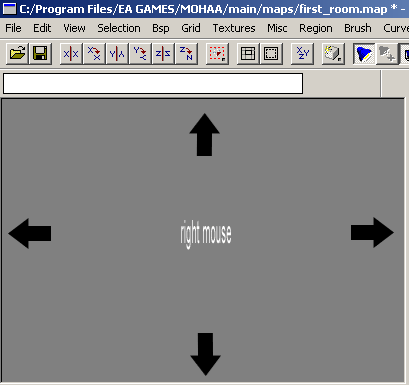
Fig 1.4
Basics:
Up arrow and right mouse - go forward
Back arrow and right mouse - go back
Left arrow and right mouse - swing left
Right arrow and right mouse - swing right
Shift + control + right mouse - rotate view
I suggest using the arrow keys to move about and "shift + control + right mouse" to rotate and "control + right mouse" to move up and down. It will take a while to get used to especially if you have used gtkradiant to edit levels before or other editors.

Fig 1.5
This is where the camera is, this icon appears in the editing windows and just shows you where the camera is viewing from at the moment.
Basic Brush Making
Things you create are called brushes, you can make them in any window but mainly you will use the top view. To make a brush you just use the left mouse button, once you have created the brush press escape to deselect and finish it. You can also hold down shift and click on the brush to deselect, there are many more keys and buttons in radiant, to view them all go to help then command list and it lists them all.
Now we have run through a few basics why not try making a room, you can follow a tutorial for that here
Tutorial by eyeronik
Other Medal Of Honor Tutorials:
First Room
Compiling