Using Models
Basics
You can insert a wide variety of map models. Map models which come with Radiant. You can see them listed in the models/map objects folder within your rtcw folder. Its quite simple to insert models. Lets learn how to put in some map models:
- Firstly decide where you want your model placing
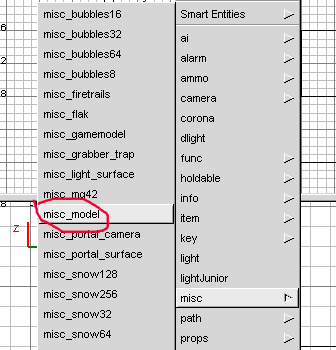
- Now "right click" a window and select "misc" then "misc model"
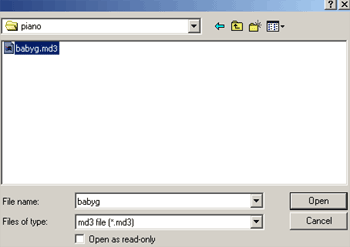
- A Windows window will pop up, to allow you to browse for map objects. I have went into map objects/piano/ and chosen "babyg" On a side note of no consequence to you, ive just noticed the top left hand corner of my monitor has a odd pink tint, so there goes my monitor.
- You should now see the model in the camera and in your windows. In this case its a piano, if it isnt and your using wolfrad (for god knows what reason as gtkradiant is an evolved version of it and far superior!) the path for the model might say c:/program files/wolf/main/models/mapobjects/piano/babyg.md3 this is no good, so change it to models/mapobjects/piano/babyg.md3 as with wolfrad everything in the wrong directory when you browse for the files.
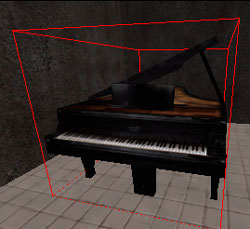
- Now you can just leave it if its how you want it. One thing to note is that it will not be solid in game. You need to put a clip weapon texture around them (called clipweap) so there solid or a player clip, once you put it over the model it seems to vanish in the editor, at least it does for me, its just a case of making a brush of similar shape to your model out of "clip weap " texture found in the "common" folder and putting it around the model.
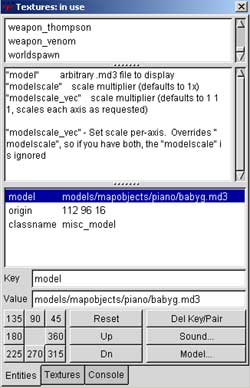
- If you select your model and press "N" to bring up the entity window, you can see a few items you can enter to change things, For instance you could add "modelscale" "2" and the model would then be twice as big.
Also you can chose which direction to make the model face by using the bottom left angle section in the properties, where it says 135,90,45,360, etc. Just click one and your model will face that direction, in relation to top view (its difficult to explain, so just click a number and see the model change direction and you will understand what I mean)
Inserting other models
There are other models which you can insert, such as the machine gun, this is a simple case of going to "misc" then choosing your model from the list.
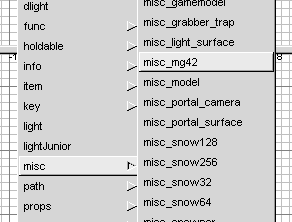
As you can see above ive clicked on mg42, which is the mounted machine gun, this will then be placed in the map. You can like with the models, select it and press "n" to bring up its properties and adjust a few things like it describes in the boxes. Note that some of these models might not work properly, ive not tried them all myself.
Using chairs and props
The final method is to insert props, which is very much like the above method only you chose props!
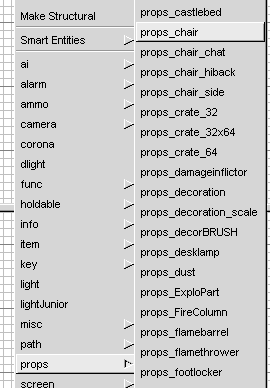
These are basically like prefabs, such as the chairs that fall over and crates, lamps. Most of the props seem to be solid already, the chairs also break and you dont have to set anything for them to do so.